
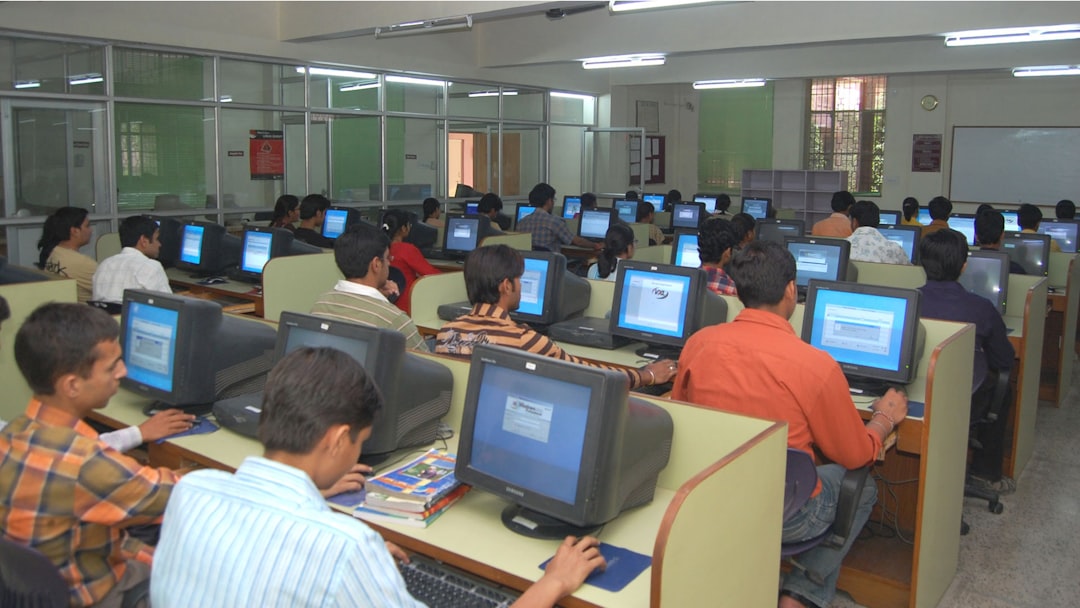
Free basic computer courses are available through public libraries, community training programs, and DigitalLearn's self-paced Computer Basics course. Start with a program that teaches mouse and keyboard use, files and folders, web navigation, video calls, and online safety; then add email and job-related practice. For many beginners, a nearby library offers the useful combination of free learning materials and human help.
Where can I take a basic computer course for free?
The most practical free starting point is often a public library or a library-supported online course, because the learning can be both structured and close to home (a rare and rather helpful pairing). DigitalLearn's Computer Basics course is free and covers starting a computer, saving and reopening a file, and creating a folder. Its related beginner materials also point learners toward web searching and navigation, video conferencing, and online safety.
That sequence matters. A course that begins with files may seem almost comically modest, but files and folders are where confidence either quietly takes root or wanders off to hide behind a menu. Once a learner can find, save, reopen, and organize a document, email attachments, online applications, and downloaded forms become much less mysterious.
Libraries can also provide instruction rather than only a login screen and a hopeful-looking search bar. An Institute of Museum and Library Services report describes LA County Library delivering 50 digital-literacy classes for English- and Spanish-speaking older adults through libraries, senior and community centers, and online. The program's curriculum included computer basics, email, video chat, web searches, scams, data protection, banking apps, misinformation, social media, and YouTube. Among 488 post-event survey respondents, 91% agreed or strongly agreed that they learned something through the library activity.
Availability differs from one library system to another, so check the events calendar, adult-learning page, or ask a staff member directly. Ask whether classes are designed for complete beginners, whether a device is supplied, and whether a learner can get help between sessions. Those small details are not fussy; they determine whether a course feels like a doorway or a locked cabinet.
| Option | Best use | What to look for |
|---|---|---|
| DigitalLearn Computer Basics | Self-paced first steps | Starting a computer, files, folders, and follow-up modules |
| Public library class | Practice with local support | Beginner level, device access, and time for questions |
| Senior or community center program | Small-group learning | Lessons in email, video calls, web searches, safety, and privacy |
| Paid course | Only when it adds support or a needed curriculum | Clear syllabus, beginner pacing, practice tasks, and help from an instructor |
Free does not automatically mean incomplete, and paid does not automatically mean better. Before paying, compare the syllabus against the basics below. A paid course may be worthwhile if it provides accessible instruction, live support, or a particular workplace tool; otherwise, a free foundation course is a sensible first lap.
What are the most important computer skills to learn in 2026?
The most important skills are controlling a device, managing files, using the internet and communication tools, and protecting personal information before moving into job-specific software.
Northstar Digital Literacy's Basic Computer Skills standards give this foundation a pleasantly unglamorous but useful shape: distinguish among a smartphone, tablet, desktop computer, and laptop; identify hardware; log on and shut down; use keyboard keys; click, double-click, right-click, drag, drop, scroll, and use drop-down menus. They also cover accessibility settings, storage choices including cloud storage, internet connectivity, and locating a laptop's camera and microphone.
For a beginner, learn these in layers rather than trying to conquer every icon in a single heroic afternoon:
- Device control: turn the device on and off, sign in, use a mouse or trackpad, type, adjust volume, and find accessibility settings that make text, sound, or input easier to use.
- Files and folders: create a folder, name a document, save it somewhere recognizable, reopen it, and understand the difference between local and cloud storage.
- Internet basics: connect to the internet, use a browser, search deliberately, recognize a web address, and navigate between pages.
- Communication: use email, attach and open files, join a video call, and check that the camera and microphone work.
- Safety and judgment: learn the course material on online safety, then slow down before sharing personal information or acting on an unexpected message. Slow is a feature here, not a failure.
Internet access and digital skills are related, but they are not the same problem wearing different hats. According to the National Telecommunications and Information Administration, 83% of U.S. residents age 3 and older used the internet in 2023, up from 80% in 2021. Yet only 54% of people in households earning under $25,000 had both fixed and mobile connections, compared with 80% of people in households earning $100,000 or more. A learning plan should therefore account for the actual device and connection available, not assume a stable laptop-and-home-broadband arrangement has simply appeared on the counter.
Job seekers can turn this foundation into a progression: first practice email, files, forms, and video calls; then read job postings and identify the software or systems repeatedly named there; finally, practice the most relevant next tool. For career planning beyond the basics, see IT Career Without a Degree: 2026 Roadmap. The goal is not to collect every possible skill. It is to make routine digital tasks routine.
How do I teach my elderly parent to use a computer?
Teach an elderly parent one meaningful task at a time, with the same steps repeated in the same order and a clear plan for privacy and help when something goes sideways.
Start with the task they actually want to do: send an email, join a video call, look up information, organize photos, or open a document. Keep the device, browser, and sign-in steps consistent at first. A handwritten or typed checklist can be useful when it names the exact buttons and the order to use them; it is not a cheating device, merely a civilized response to software that enjoys moving things around.
Build from physical confidence to online confidence. Practice the mouse or trackpad, scrolling, clicking, typing, and volume before introducing a crowded website. Then use one familiar website or one contact for repetition. If vision, hearing, dexterity, or memory makes a default setting awkward, Northstar's inclusion of accessibility settings is a good reminder that changing the setup is part of learning, not an admission of defeat.
Privacy deserves an early, calm conversation. AARP's 2025 research reports that 66% of adults age 50 and older say technology enriches their lives by making daily life and aging easier, while privacy concerns remain a leading barrier to adoption. The same research found that 18% of adults 50 and older used generative AI in 2024, up from 9% in 2023. The useful teaching response is neither alarm nor a grand technological pep rally: explain what information should stay private, encourage a pause before responding to unexpected requests, and make asking for a second opinion normal.
Give the learner an out. If video calls are the immediate goal, there is no need to detour into every settings panel. If a class feels too fast, a library or community program may offer a better pace. The point is not to make someone look proficient while a helper hovers nearby; it is to make the next independent attempt feel possible.
What is the best online computer course for absolute beginners?
For an absolute beginner, DigitalLearn's free Computer Basics course is a strong first online choice because it begins with starting a computer, saving and reopening files, and creating folders rather than assuming those steps are already settled.
There is no single best course for every person, because the best fit depends on the learner's device, connection, accessibility needs, and goal. Still, a genuinely beginner-friendly course should not leap from “click here” to a thicket of workplace jargon. It should start with device control, allow repetition, and make the next skill visible: files lead to attachments; web navigation leads to searching; camera and microphone checks lead to video calls.
Use this simple test before enrolling anywhere: can the course say exactly what a learner will be able to do by the end? DigitalLearn can: start the computer, save and reopen a file, and create a folder. Northstar can: identify devices and hardware, use common mouse actions and menus, work with storage, and locate essential laptop features. Concrete outcomes beat vague promises every time.
For a job seeker, finish the basic course and create a small practice loop. Save a document in a folder, reopen it, attach it to an email, and join a practice video call. Then examine the digital tasks in the roles being considered. The Bureau of Labor Statistics says computer user support specialists assist users with hardware and software, including printing, installation, word processing, email, and operating systems. Its 2025 occupational requirements data also shows that 97.0% of these jobs required more than basic people skills, which is a useful corrective to the lonely-genius myth: communication belongs in the plan too.
Readers seeking work quickly may also find Immediate Hire Jobs That Start This Week helpful when matching newly built digital basics to a job search. Begin with the course that makes the first task manageable, complete it, and choose the next lesson from a real need. That is the whole trick. No ceremonial spreadsheet required.
Frequently Asked Questions
Are there free computer classes at public libraries?
Many public libraries offer free computer learning resources or classes, though availability, schedules, and formats vary by location. DigitalLearn provides free materials designed for library and community training, and an Institute of Museum and Library Services example describes LA County Library classes delivered at libraries, senior and community centers, and online. Check a local library's events calendar or ask staff about beginner digital-literacy help.
Do I need computer skills to get a job in 2026?
The level of computer skill needed depends on the role, but digital basics can support job searching, email communication, forms, documents, and workplace systems. The Bureau of Labor Statistics notes that computer user support specialists help with hardware, software, printing, installation, word processing, email, and operating systems; its 2025 data also shows these roles commonly combine training or prior experience with people skills. Start with transferable basics, then learn the tools named in the jobs you want.
What is the difference between computer literacy and coding?
Computer literacy means using technology effectively for everyday tasks, such as operating a device, managing files, getting online, communicating, and protecting personal information. Coding is the separate skill of writing instructions for computers in programming languages. A beginner does not need coding to become digitally literate or to begin many job-readiness tasks.
Sources
- DigitalLearn / Public Library Association: Computer Basics
- Northstar Digital Literacy: Basic Computer Skills Standards
- Institute of Museum and Library Services: LA County Library digital literacy program
- National Telecommunications and Information Administration: Internet Use Survey findings
- AARP Research: 2025 Technology Trends and Adults 50-Plus
- U.S. Bureau of Labor Statistics: Computer User Support Specialists